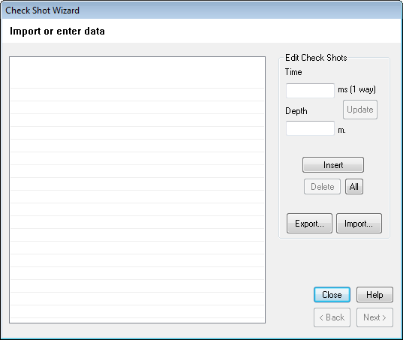
Apply a check shot correction to a GeoSyn synthetic by importing an ASCII format file or create one from scratch by typing time and depth values for individual check shot pairs.
If the well to be check shot corrected also requires a directional survey correction, apply the directional survey first. For details, see Related Topics below.
To import check shot surveys and VSPs
1. From the File menu, select Import >Check Shot or VSP Survey.
The Import Data
dialog box appears.
2. Either click Import and browse for the desired check shot survey file or type individual time depth pairs in the Time and Depth boxes, and then click Insert.
If importing a check shot file, complete the bulleted steps otherwise continue to step 3.
The Import Check Shots dialog box appears.
Browse to the desired file.
To view and modify the contents of an ASCII file before importing, click File Viewer to display the file contents in an ASCII text editor.
Browse to the file to import then click Open.
The Highlight first line
dialog box appears.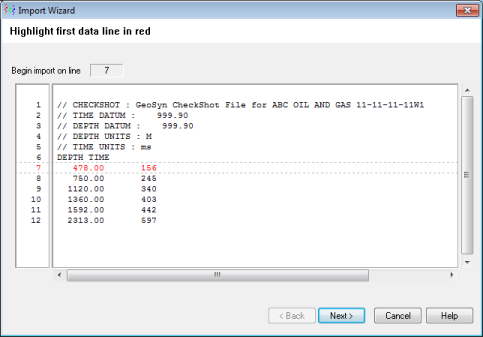
Select the first line to import and click Next.
The Highlight last line
dialog box appears.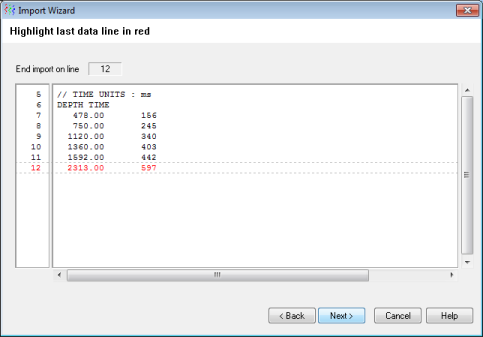
Select the last line to import and click Next.
The Set column delimeters
dialog box appears.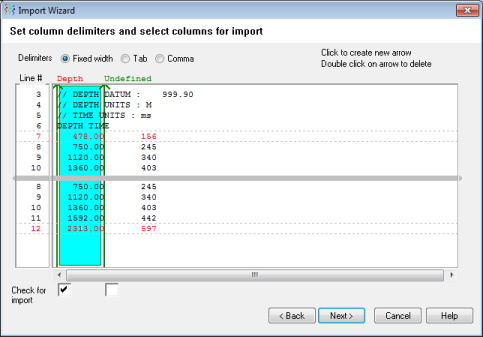
Set
the column delimeters ( ) by clicking in the display pane
between required columns. The green line can't bisect a data column. Double-click
column delimiters to delete.
) by clicking in the display pane
between required columns. The green line can't bisect a data column. Double-click
column delimiters to delete.
| Click the box that appears below each delimeter to display the Select from List dialog box and identify the data type then click Next. |
|
The Finish
dialog box appears.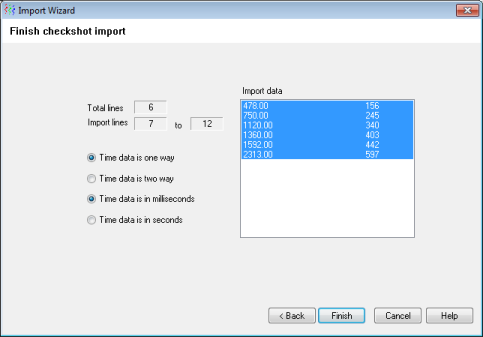
Click Back to change any previous selections or click Finish.
The Import Data
dialog box appears, populated with the typed or imported values.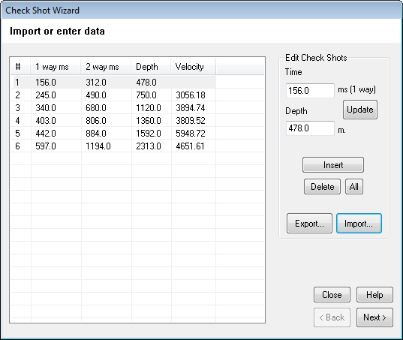
3. Do any of the following:
To modify or add values, select the row to replace, or type values in the Time and Depth boxes, and then click either Update or Insert.
To delete a row, select it in the display pane and click Delete or click All to clear the entire display pane.
To save the display pane to an ASCII format file, click Export.
4. Click Next.
The Define Datums
dialog box appears. It's very important to properly define the datum parameters
of the check shot data.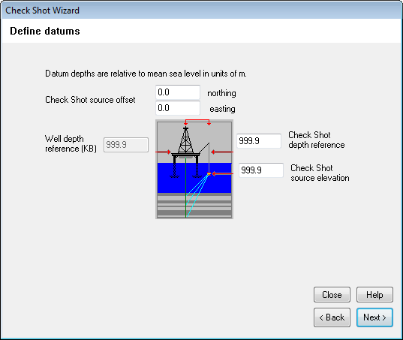
5. Define the datum parameters then click Next.
The Shift Time Zero
dialog box appears. If you don't change the datum, synthetic time zero
will be at the check shot time datum.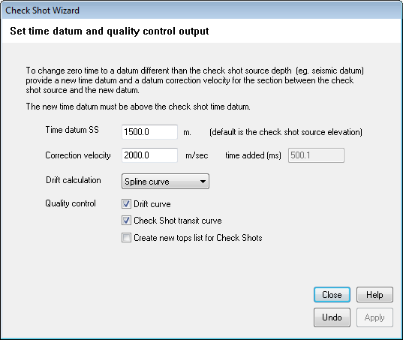
6. Select the appropriate options then click Apply and Close to complete the import.
Click Undo in the above dialog box to go back and select different settings.
The changes applied above are also visible in the Time Datum Properties dialog box. If a layer was already added above the model using the Time Datum Properties dialog box, the check shot import process adds an additional zone to that dialog box. See Related Topics for details.
| Importing Directional Surveys | Check Shot Computation |
| Changing Time Datum Properties |